Managing secrets with Kamal, Rails, and 1Password
I've got two Rails 8 apps deploying successfully with Kamal, and I thought I'd share how I'm handling secrets/credentials. My primary aim was to have 1Password be the source of truth in all scenarios. It took me a little while to settle on how I wanted to manage them across various environments, but I finally have a workable solution. I'm also a user of dev containers, so I'll discuss how I get that working in my setup.
What goes where?
Even a small Rails app is going to end up with a bunch of secrets floating around. The app will need some for deployment, but it won't need others until it is up and running. Additionally, you might have separate sets of secrets for development and production. You might work on a team and want to limit who has access to what. It can get messy, so here's what I've settled on.
SSH Keys
Yes, I even wanted SSH keys to be managed by 1Password, and they have a feature that does that. You can create new keys or import existing ones. Kamal needs SSH in order to access your server, so I wanted to mention it in this post.
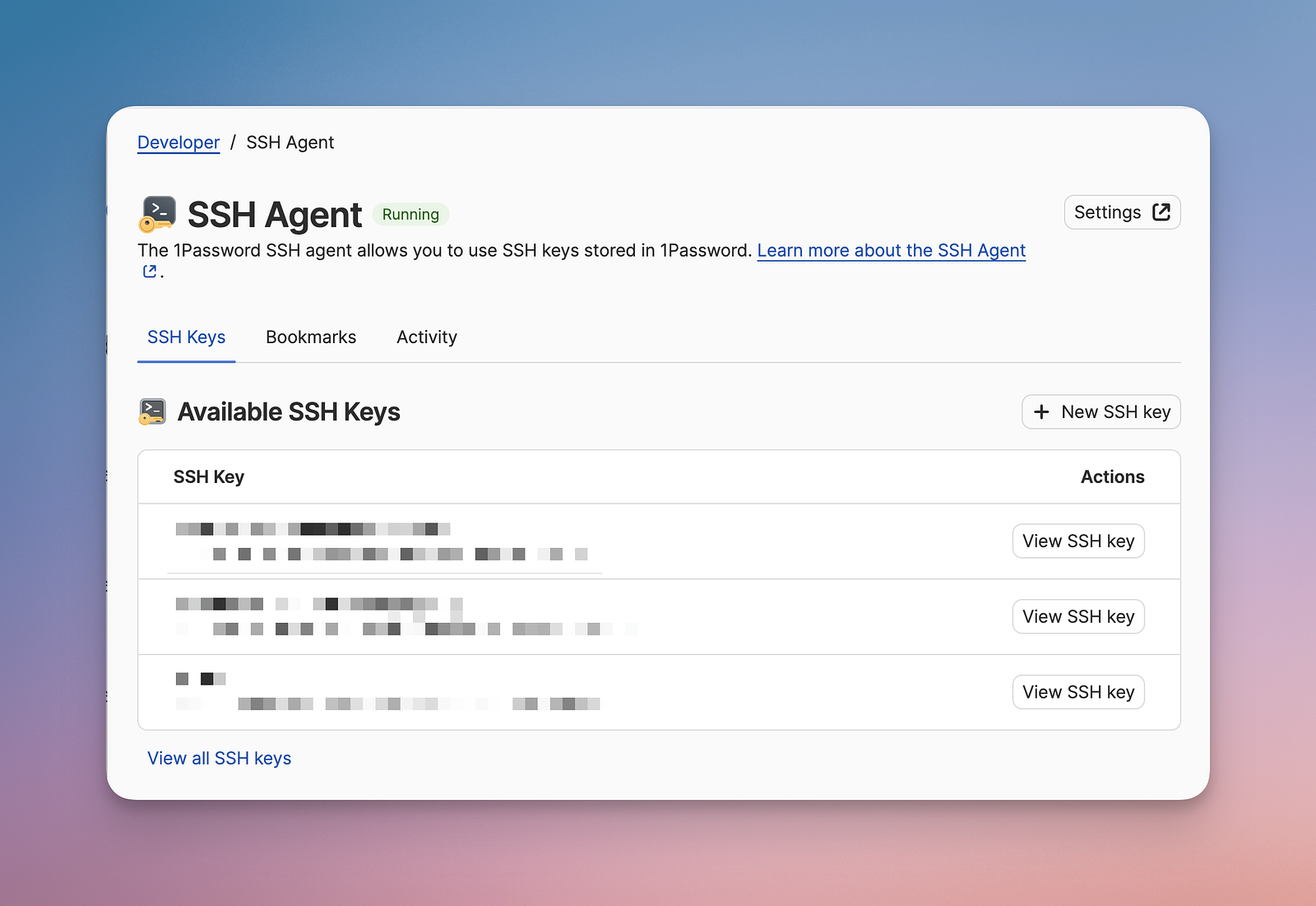
Pay particular attention to Step 4 if you're using dev containers. You need to make sure you create a symlink:
mkdir -p ~/.1password && ln -s ~/Library/Group\ Containers/2BUA8C4S2C.com.1password/t/agent.sock ~/.1password/agent.sock
Then you must export the SSH_AUTH_SOCK:
export SSH_AUTH_SOCK=~/.1password/agent.sock
This is a necessary step to get your dev container to utilize 1Password's SSH keys.
Pre vs post app boot
On to your Rails app! Let's get the easy part out of the way: most secrets will end up in config/credentials.yml.enc. This is an established Rails pattern and super easy to work with. You don't edit this file directly, instead you run the command bin/rails credentials:edit to open it.
You'll store all your credentials and secrets that are needed after your app is running using this method. Credentials you might put in here:
- Amazon S3
- Cloudflare
- Honeybadger
- Postmark
You can separate development and production secrets by creating additional credentials files by doing something like:
bin/rails credentials:edit -e production
This would create the new file config/credentials/production.yml.enc. Put your production-specific secrets in there.
Nothing fancy thus far; this is well-traveled territory. But what about the credentials needed before your app launches? That's trickier, and it's next, broken down by environment.
Development (host machine)
- Source of truth: 1Password.
- Access method: Kamal's 1Password Adapter.
- Access control: the correct 1Password vault would have to be shared with a team member.
- Requirements: 1Password app and 1Password CLI installed on the host machine.
You may occasionally want to issue Kamal commands from the host machine (i.e. your computer) even if you use dev containers or a dockerized Rails app. Quickly checking server logs would be a good example that shouldn't require you opening VSCode (or whatever) and waiting for all the Docker containers to spin up.
The good news is that this is the default setup provided by Kamal when you set it up. I avoid hard-coding the --account flag in .kamal/secrets and instead export an $OP_USER_ACCT environment variable. This allows other team members to specify their own 1Password Account ID.
Upshot
This follows the Kamal/Rails blessed approach and will only allow team members who have been given vault access the ability to issue most Kamal commands from their machine. In a perfect world we'd want all deployments to go through a CI/CD pipeline anyway, so restricted access here is intentional.
Development (dev container)
- Source of truth: 1Password.
- Access method: 1Password CLI via a 1Password Service Account.
- Access control: a team member would need to export the
OP_SERVICE_ACCOUNT_TOKENenvironment variable. - Requirements: 1Password CLI installed in the dev container.
Don't install the 1Password app in the dev container. It's too messy. It's easier to install the 1Password CLI, which I typically do in a postCreateCommand.sh script that fires at the end of the .devcontainer/devcontainer.json instructions.
You will have to create a 1Password Service Account that provides access to a vault you specify. Then you specify an OP_SERVICE_ACCOUNT_TOKEN in .devcontainer/compose.yaml. Kamal is going to look for the existence of this environment variable and acquire secrets from 1Password via the Service Account approach.
Upshot
The 1Password CLI and Service Account approach is the best path forward for dev containers. A team member would need to be given the OP_SERVICE_ACCOUNT_TOKEN in order for things to work. Again, deployments should go through CI/CD anyways.
CI/CD
- Source of truth: 1Password.
- Access method: 1Password GitHub Action via a 1Password Service Account.
- Access control: managed via GitHub (e.g., who can push, merge PRs, etc.)
- Requirements: 1Password GitHub action defined in a GitHub Workflow
The CI/CD setup is arguably the most important because most of your deployments should route through it. The good news is that it's super simple, especially if you've already set up a 1Password Service Account mentioned above.
There is an existing 1Password GitHub Action you'll want to get set up in your workflow. You'll need to provide your OP_SERVICE_ACCOUNT_TOKEN in the repo settings. Now you can export the environment variables stored in 1Password in your workflow like:
env:
    RAILS_MASTER_KEY: "op://your_vault/project/RAILS_MASTER_KEY_PRODUCTION"
Conclusion
Hopefully this gives you a "lay of the land." This setup accomplishes the goal of managing all your secrets and credentials inside of 1Password, along with reasonable ways to limit access to the right people. You're obviously putting a lot of eggs in the 1Password basket, but I feel reasonably comfortable with that at this point.
Enjoy!